

What is the PROBLEM?
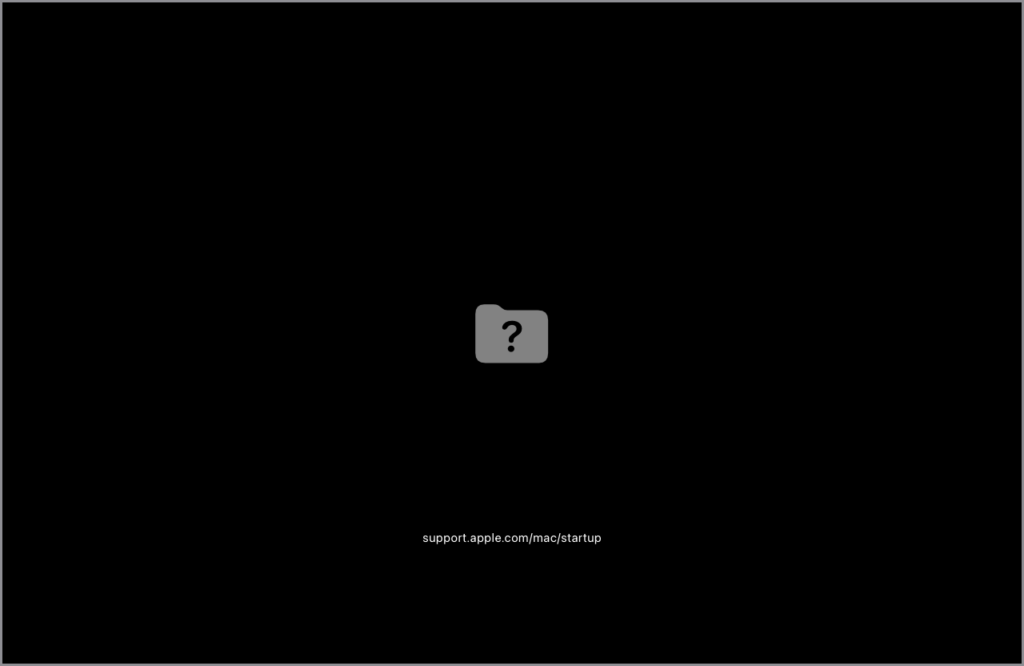
or
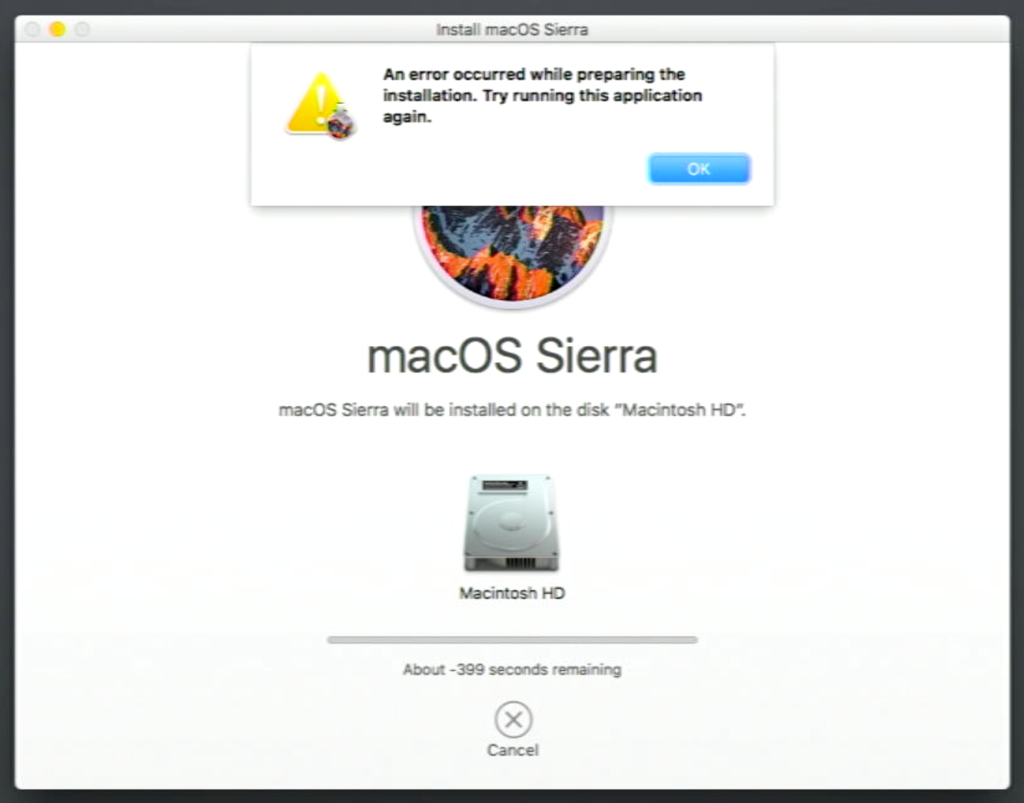
The InstallESD.dmg located in Apple’s macOS Sierra 10.12.6 Internet recovery & App Store is corrupted (and/or has additional issues), preventing installation.
The error message after Sierra is downloaded:
“An error occurred while preparing the installation. Try running this application again.”
- This is NOT the date & time issue. If you change the date back in time, you will fail the PROPER certificate check on install.
- Make sure you are connected to WIFI or Ethernet and verify your date and time is correct.
Following commands are to be run AFTER you BACKUP YOUR DATA if you have not already.
We need to erase your Hard Drive and name it “Macintosh HD” in Disk Utility.
The only official working Apple Sierra full installer is “InstallOS.dmg” located at Apple Support.
The easiest way to work around this issue is to create a macOS Sierra USB installer OR boot to a newer or older version of Internet Recovery:
NOTE: High Sierra Internet Recovery is also broken! More information can be found here.
Most people only have one Mac and you might be in this situation because your Macintosh HD was already erased, and the Sierra install failed! So, you are STUCK!
This workaround will help get the working macOS Sierra full installer downloaded from Apple, and then we can start it up.
OPTIONAL: At the end, I will also show you how to create a macOS Sierra USB installer inside macOS Recovery just in case.
Let’s get started!
Run each command one at a time.
NOTE: You can cut and paste commands directly from this document by highlighting the line with your mouse and then using copy and paste (Command C & Command V).
1. Check date & time to make sure it is correct:
date
2. If not correct, make sure you are connected to WiFi or Ethernet and run this command:
ntpdate -u time.apple.com
3. Change directory to Macintosh HD:
cd /Volumes/Macintosh\ HD
4. Download the macOS Sierra 10.12.6 InstallOS.dmg from Apple.com using curl:
Note: This is a 4.7GB file and might take a while or fail. If it fails, run it again.
curl http://updates-http.cdn-apple.com/2019/cert/061-39476-20191023-48f365f4-0015-4c41-9f44-39d3d2aca067/InstallOS.dmg -o InstallOS.dmg
5. Mount the InstallOS.dmg:
hdiutil attach InstallOS.dmg
6. Install the “Install macOS Sierra.app” from the InstallOS.dmg to Macintosh HD volume:
installer -pkg /Volumes/Install\ macOS/InstallOS.pkg -target /Volumes/Macintosh\ HD
7. Start the Sierra installer:
The “Install macOS Sierra.app” is now in the /Volumes/Macintosh\ HD/Applications folder.
/Volumes/Macintosh\ HD/Applications/Install\ macOS\ Sierra.app/Contents/MacOS/Installassistant_springboard
Note: In a few seconds, the Sierra installer will start BEHIND the terminal window. If you don’t see it, make the terminal window smaller, but DON’T close it, as it will stop the installer.
Now, step through the installer. You are good to go now!
Optional: Create macOS Sierra USB installer
Take a picture of these instructions with your phone as we need to close the terminal.
Steps:
- Plug in your USB Drive and make sure to back up all data as we are going to ERASE the drive in Disk Utility.
- When erasing the USB drive, make sure you:
- Click “view” and click “Show all devices.”
- Use Format: macOS Extended Journaled and GUID Partition Map.
- Leave Untitled as the default drive name.
- Go back to terminal.
Even though Apple reissued the Sierra installer to fix the Certificate issue in 2019, it has another problem:
- The Info.plist CFBundleShortVersionString has an incorrect entry of 12.6.06; it needs to be 12.6.03.
To fix it, run this command to edit the new entry in (Credit: MacRumors forum user: EricFromCanada):
plutil -replace CFBundleShortVersionString -string "12.6.03" /Volumes/Macintosh\ HD/Applications/Install\ macOS\ Sierra.app/Contents/Info.plist
Create the macOS Sierra USB Installer:
/Volumes/Macintosh\ HD/Applications/Install\ macOS\ Sierra.app/Contents/Resources/createinstallmedia --volume /Volumes/Untitled --applicationpath /Volumes/Macintosh\ HD/Applications/Install\ macOS\ Sierra.app
I hope these instructions helped you get your Mac back up and running.
reference: https://ia801208.us.archive.org/18/items/sierraurl/sierra.txt
, preventing installation. The error message after Sierra is downloaded: “An error occurred while preparing the installation. Try running this application again.” This is NOT the date & time […]</p>
)